


You’ve made the call. HubSpot is too expensive, too complex, or simply not what your business needs right now. Now you just need to get out cleanly without accidentally rolling into another annual contract, losing your data, or paying for a platform you’re not using.
This guide covers everything you need to do before, during, and after cancelling HubSpot, in the right order. No detours.
The First Thing to Know: You Cannot Cancel HubSpot Mid-Contract
This is where most people get caught out, so it needs to be said upfront.
If you’re on a Professional or Enterprise plan, which requires an annual commitment, HubSpot does not permit mid-contract cancellations. You cannot stop being billed immediately. Your subscription will continue until the end of your current commitment term, regardless of when you request cancellation.
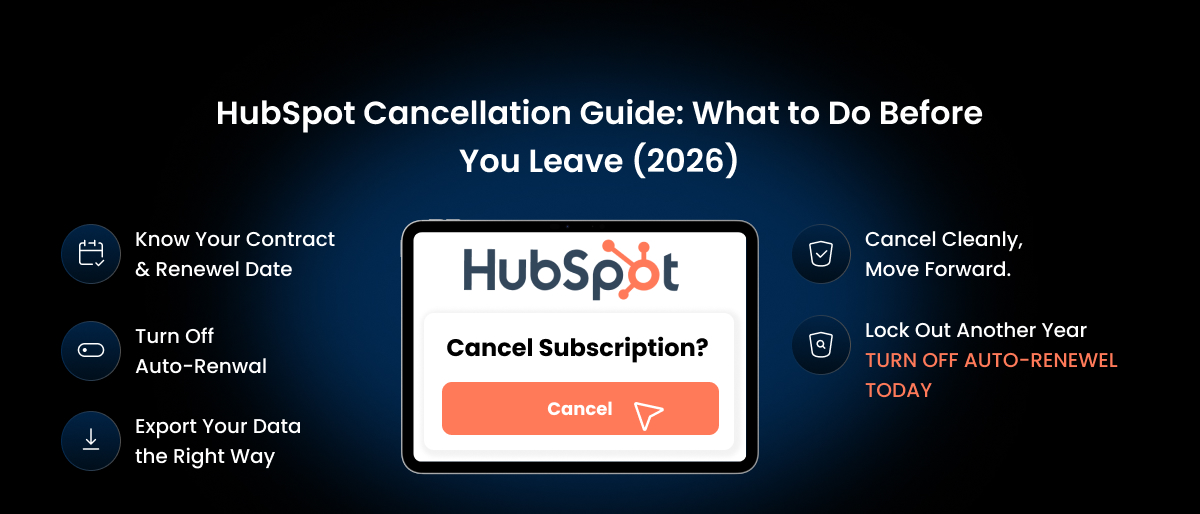
What you can do right now, today, is turn off auto-renewal. This is the single most important action in this entire guide. If you don’t turn off auto-renewal before your renewal date, HubSpot will automatically roll you into another 12-month term, and at that point, you’re locked in for another year.
Find your renewal date before you do anything else. Log into HubSpot, click your account name in the top right corner, go to Account & Billing, and check the renewal date listed under your active subscription. That date is your deadline for everything that follows.
If you’re stuck waiting out your HubSpot contract, use this time to set up Saleoid in parallel, it takes less than a day, and you’ll be ready to switch the moment your term ends. Set Up Saleoid for Free While You Wait
Step 1: Turn Off Auto-Renewal Right Now
Even if you’re months away from your renewal date, do this today.
How to turn off HubSpot auto-renewal:
- Log into your HubSpot account at app.hubspot.com
- Click your account name in the top right corner
- Select Account & Billing
- Click the Subscriptions tab
- In the Auto-renewal terms section, click Cancel auto-renewal
- Select which products you want to cancel, or select all subscriptions
- Review the features that will be affected
- Select your cancellation reason and confirm
You need billing admin permissions to do this. If you don’t have them, contact whoever manages billing at your company now, not the week before renewal.
Once auto-renewal is off, HubSpot will send a notice of non-renewal to the billing admin confirming the commitment term and the effective cancellation date. Your subscription remains active and you continue to be charged until that date, then it ends automatically.
One important note for Professional and Enterprise subscribers: If you also want to downgrade (rather than cancel entirely), you need to contact your HubSpot Contract Manager at least five business days before your renewal date. Downgrades are not self-service at these tiers.
Step 2: Check What You’re Actually Paying For
Before your subscription ends, take stock of every HubSpot product you’re currently subscribed to. Many businesses discover they’re paying for Hubs they barely use, Marketing, Sales, Service, Content, Operations, each with separate subscription lines.
Go to Account & Billing and then to Subscriptions and list every active product and its cost. This matters for two reasons:
First, you need to turn off auto-renewal on each subscription separately if you have multiple Hubs active. Cancelling one Hub doesn’t cancel the others.
Second, this gives you a clear picture of what you’ve been spending, which is useful context when evaluating what your next CRM should actually cost. Most businesses doing this exercise for the first time are surprised by the total number. A Marketing Hub Professional plus Sales Hub Starter plus one Commerce Hub add-on adds up faster than the headline pricing suggests.
Step 3: Export Your Data Before Your Subscription Ends
Once your subscription lapses, your account is downgraded to HubSpot’s free tools. Your data doesn’t disappear immediately, but access becomes limited, and free accounts inactive for 120 days are automatically deleted. Don’t leave your data export until after cancellation.
Export everything while you still have full access:
- Contacts: Go to CRM → Contacts. Select all, click Export, choose CSV, select all properties, and download via the email link HubSpot sends you.
- Companies: Go to CRM → Companies. Same process, all records, all properties, CSV format.
- Deals: Go to CRM → Deals. Export all deals across all pipelines, including closed won and closed lost records. Include all properties.
- Email campaign performance: Go to Marketing → Email and export your campaign analytics. This data won’t transfer to a new system, but it’s worth keeping for your own reference.
- Workflows (documentation): Go to Automation → Workflows and use Export view to download a spreadsheet summary. Workflow logic itself doesn’t export as an importable file for another CRM, this is a reference document for rebuilding your automations.
Save every export file in a clearly labelled folder with the export date. Keep these files for at least 12 months after cancellation. Some industries require it longer for compliance purposes.
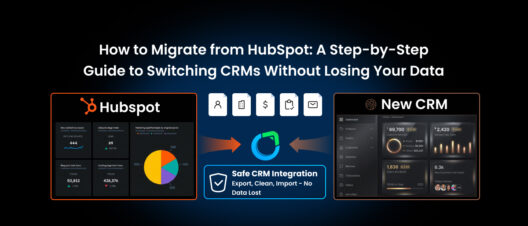
For a complete step-by-step walkthrough of the data export and migration process, including how to clean your records, rebuild your automations, and choose the right platform to move to read our full guide: How to Migrate from HubSpot to Another CRM →
Step 4: Disconnect Your Integrations
Any tools connected to your HubSpot account, such as your email inbox, Google Calendar, payment processors, Slack, or third-party apps, will lose their connection when your subscription ends or your account is deleted.
Before you cancel, make a list of every active integration. After your new CRM is set up, reconnect each one through the new platform before you delete your HubSpot account. Missing this step means your calendar bookings, inbox sync, or payment notifications go dark until you notice and fix it, which is usually at the worst possible moment.
Go to Settings → Integrations → Connected Apps to see everything that’s currently linked to your HubSpot account.
Step 5: Delete Your HubSpot Account (When You’re Ready)
Turning off auto-renewal cancels your paid subscription. It does not delete your account. After your subscription ends, you’re on HubSpot’s free tools, your data is still there, you’ve just lost paid features.
If you want to fully close the account, wait until you’ve confirmed your new CRM is running correctly and your data is intact. Then:
- Make sure your subscription has ended and you’re on the free tier
- Go to Account & Billing
- Click the Delete Account tab
- Enter your Hub ID to confirm
- Follow the on-screen prompts to complete deletion
Account deletion is permanent. Once deleted, HubSpot cannot recover your data. Only do this after you’ve exported everything and verified your new CRM has everything it needs.
What to Do If HubSpot Is Too Expensive but You Still Need a CRM
Cancelling HubSpot doesn’t mean going without. It means going without this bill.
Most businesses leaving HubSpot aren’t looking to downgrade their capabilities; they’re looking to stop paying $800–$1,600/month for features that either require extra Hubs to access or weren’t being used in the first place. The features that actually matter for a small business like CRM, email and WhatsApp automation, invoicing, project management, and client portal should come standard, not as separate add-ons.
If you’re switching from HubSpot and evaluating where to go next, start with what was missing or overpriced in your current setup, then find a platform that includes it at a price that makes sense.
See the full comparison: HubSpot alternatives for small businesses
HubSpot Cancellation Checklist
Do these in order:
- Find your HubSpot renewal date (Account & Billing → Subscriptions)
- Turn off auto-renewal on every active Hub subscription today
- If on Professional or Enterprise, contact your Contract Manager at least 5 business days before renewal
- List all active HubSpot subscriptions and their costs
- Export contacts (CSV, all properties)
- Export companies (CSV, all properties)
- Export deals (CSV, all properties)
- Export email campaign performance data
- Export workflow documentation (reference only)
- Save all exports in a dated folder, keep for at least 12 months
- List all connected integrations (Settings → Integrations → Connected Apps)
- Set up your new CRM and verify data import before cancellation date
- Reconnect all integrations through your new platform
- Confirm new CRM is fully operational
- Delete HubSpot account when ready (Account & Billing → Delete Account)
Frequently Asked Questions
You can turn off auto-renewal at any time, but mid-contract cancellations are not permitted on paid plans. Your subscription will continue until the end of your current commitment term. If you cancel after 8 months of a 12-month contract, you’ll still be charged for the remaining 4 months.
HubSpot does not offer refunds for paid subscription periods. Your subscription runs to its end date regardless of when you turn off auto-renewal or stop using the platform.
Your account is downgraded to HubSpot’s free tools after your paid subscription ends. Data remains accessible on the free tier but free accounts inactive for 120 days are automatically deleted. Export all data before your paid subscription ends.
For Starter plans, cancellation is self-service through Account & Billing. For Professional and Enterprise plans, you can turn off auto-renewal yourself, but if you also want to downgrade (rather than cancel entirely), you need to contact your HubSpot Contract Manager at least five business days before your renewal date.
That depends on what you actually need. For small businesses, startups, and service teams that want CRM, automation, invoicing, WhatsApp marketing, and a client portal without per-seat pricing or Hub add-on costs, Saleoid starts from $5/month with unlimited users and no onboarding fee.
You’re almost out. When you’re ready for a CRM that doesn’t lock you into contracts or charge you just to use the features you actually need, Saleoid is ready.👉 Compare Saleoid vs HubSpot →
Disclaimer: The pricing, features, fees, and other information presented in this article are based on publicly available data from the vendor’s official website, reputable third-party review platforms, and experiences shared by verified customers. While every effort has been made to ensure accuracy at the time of writing, product offerings and pricing may change over time. Readers should verify the latest information directly with the respective provider before making a purchasing decision.